
















Testing SSD speed is a practical way to check whether a solid-state drive is performing as expected. Whether you are upgrading a laptop, troubleshooting slow file transfers, or evaluating SSD samples before a bulk order, benchmark results can help you understand drive performance.
However, an SSD's speed depends on more than the product specification. The interface, computer hardware, test settings, drive capacity, available free space, and workload can all affect the results. This guide explains how to test SSD speed, which benchmark tools to use, and how to interpret the numbers correctly.
Quick Answer: How Do You Test SSD Speed?
To test SSD speed, connect the drive properly, close unnecessary applications, and run a benchmark tool such as CrystalDiskMark. Select the correct drive, use consistent test settings, and compare the results with the manufacturer's specifications for the same interface and capacity.
- Sequential read/write speed: Measures performance when transferring large, continuous blocks of data.
- Random read/write performance: Helps show how a drive handles scattered data requests.
- IOPS and latency: Provide additional information about input/output performance and response time.
- Repeatability: Multiple consistent tests are more useful than relying on one unusually high or low result.
1. What Should You Check Before Testing SSD Speed?
Before running a benchmark, confirm that the SSD is installed correctly and operating under suitable conditions. A test result can be misleading if the drive is connected through a slower interface or the system is performing other demanding tasks.
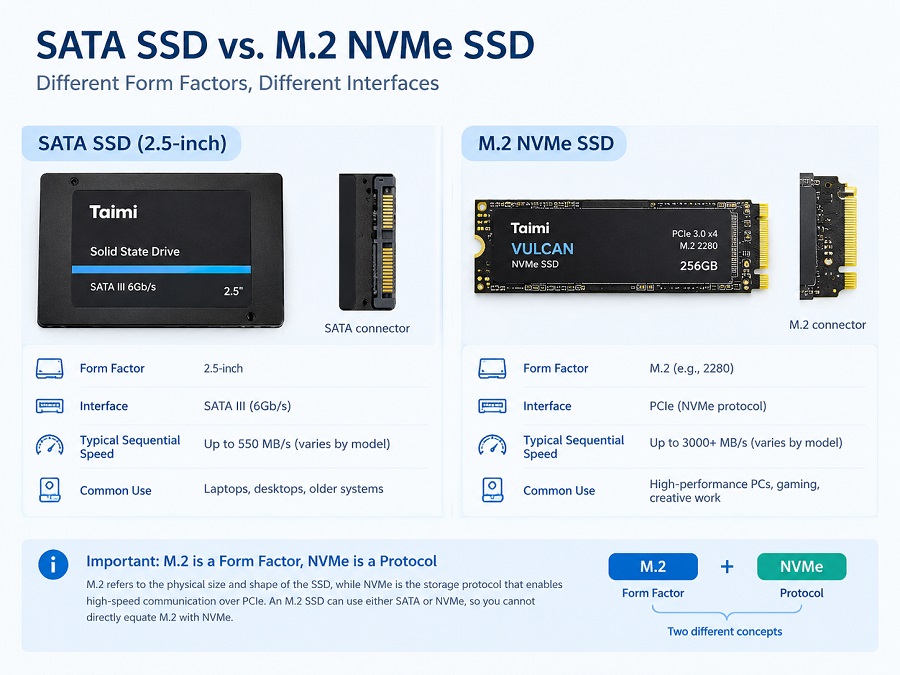
- Confirm the SSD interface: Identify whether the drive uses SATA or PCIe/NVMe. An M.2 connector alone does not confirm that a drive uses NVMe.
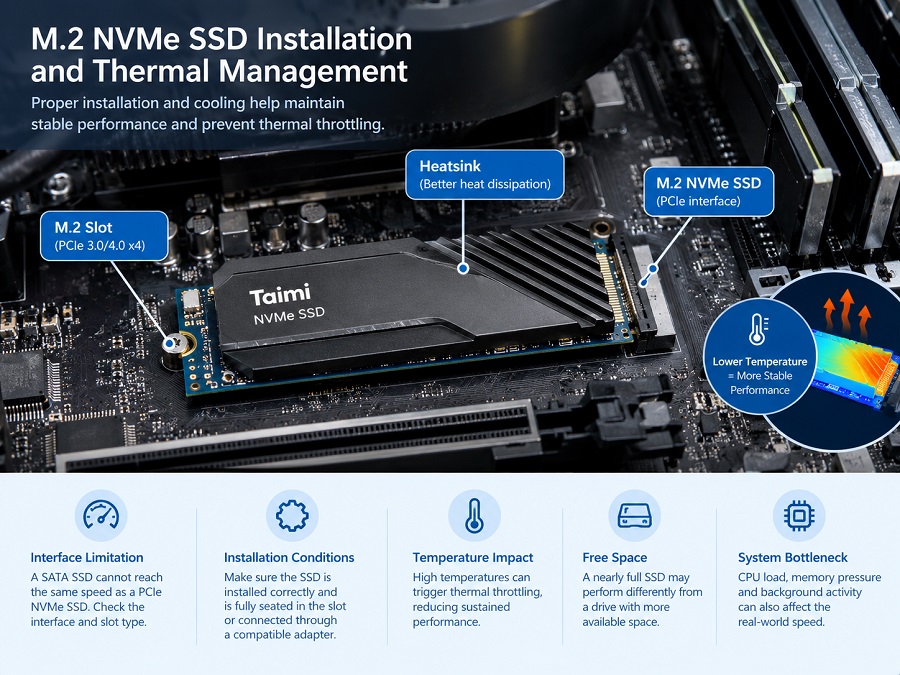
- Check the connection: Make sure the SSD is installed in a compatible slot or connected through an appropriate adapter.
- Check the negotiated link: A PCIe SSD installed in a slot with fewer supported lanes or an older PCIe generation may not reach its rated maximum speed.
- Leave sufficient free space: A nearly full SSD may behave differently from a drive with more available space.
- Reduce background activity: Pause large downloads, file copies, system updates, and other intensive tasks while benchmarking.
- Monitor temperature: High temperatures may cause thermal throttling and reduce sustained performance.
It is also important to distinguish between a drive's advertised maximum speed and its performance in a real computer. For more background, see SSD Read Speed vs. Write Speed.
2. SSD Benchmark Tools: Which One Should You Use?
Different benchmark tools measure different aspects of storage performance. CrystalDiskMark is a useful starting point for most Windows users, while other tools can help evaluate real-world transfers, sustained performance, or drive health.
| Tool | Best For | What It Measures | Important Note |
|---|---|---|---|
| CrystalDiskMark | General SSD speed testing | Sequential and random read/write performance | Results depend on the selected test profile and settings. |
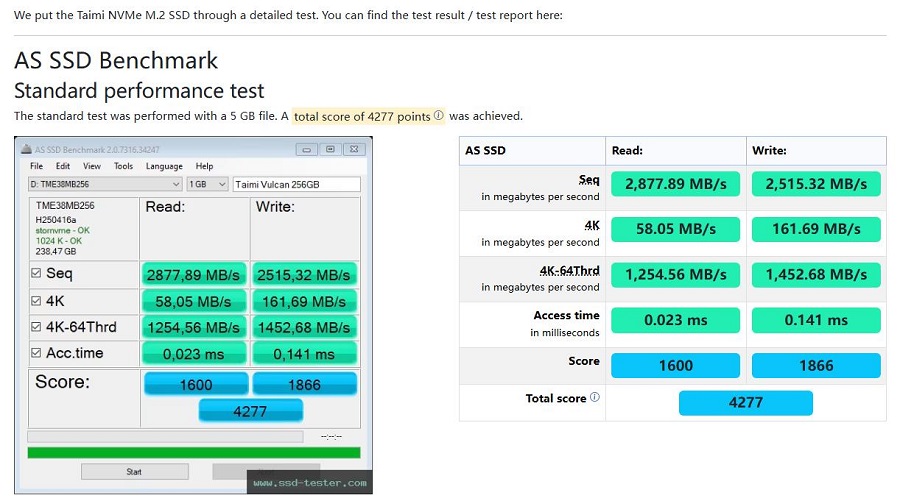
| AS SSD Benchmark | Additional SSD performance checks | Sequential and random performance, access time, and related scores | Scores from different benchmark tools are not directly interchangeable. |
| ATTO Disk Benchmark | Comparing transfer sizes | Read/write throughput at different I/O sizes | Results vary with the selected transfer size and test configuration. |
| Operating-system file copy | Everyday performance checks | Actual file-transfer behavior | The source drive, file size, cache, and system workload also affect results. |
For a straightforward Windows benchmark, start with CrystalDiskMark from Crystal Dew World. Use the same tool and test settings when comparing different drives.
3. How to Test SSD Speed with CrystalDiskMark
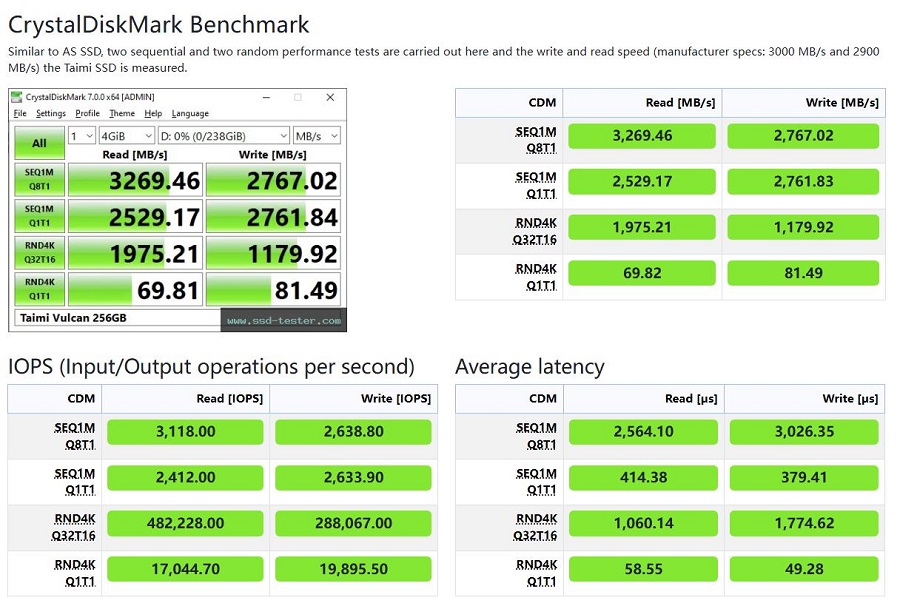
CrystalDiskMark is widely used to measure storage read and write performance. The following steps provide a consistent starting point for testing a SATA or NVMe SSD on Windows.
Step 1: Install and Open CrystalDiskMark
Download the software from its official website and open it. Confirm that you have selected the intended SSD rather than another internal drive or an external storage device.
Step 2: Select the Test Settings
Choose the target drive and review the test configuration. Common settings include the number of test runs, test size, and the number of test threads or queues used by the selected profile.
For basic comparisons, use consistent settings across all drives. A larger test size can help reveal behavior that may not appear in a very short test, although it also takes longer and can affect cache-related results.
Step 3: Run the Benchmark
Start the test and allow it to finish. Avoid launching other disk-intensive applications during the run. If the results vary substantially between runs, repeat the test after checking background activity, temperature, and available free space.
Step 4: Record the Results
Save or note the sequential read/write results and the random performance results relevant to your workload. If you are comparing SSD samples, also record the model, capacity, interface, firmware version where available, and test platform.
Step 5: Compare Results Under Matching Conditions
Compare the benchmark results with the product specification and other drives tested under the same conditions. Do not treat a result from one benchmark profile as directly equivalent to a result from a different profile.
4. How to Read SSD Benchmark Results
SSD benchmarks report several measurements. Understanding what each number represents helps prevent misleading comparisons.
| Metric | Meaning | When It Matters |
|---|---|---|
| Sequential read speed | How quickly the SSD reads large, continuous blocks of data. | Large file access, media workflows, and sequential data transfers. |
| Sequential write speed | How quickly the SSD writes large, continuous blocks of data. | Large file copies, data imports, and sustained write workloads. |
| Random read/write | Performance when accessing data in non-contiguous locations. | Operating systems, applications, and mixed everyday workloads. |
| IOPS | The number of input/output operations completed per second. | Small-block and high-frequency storage operations. |
| Latency | The time required to complete an individual storage request. | Responsiveness and workloads sensitive to storage delays. |
Sequential speed is usually reported in MB/s, while IOPS represents the number of input/output operations completed per second. These metrics describe different aspects of performance and should not be used interchangeably.
For a closer look at workload differences, read Sequential vs. Random SSD Speed. For a more detailed explanation of IOPS, the testing conditions matter just as much as the reported number.
5. Why Is My SSD Speed Lower Than Expected?
A benchmark result below the advertised maximum does not automatically mean the SSD is defective. First, check whether the drive and the test conditions match the conditions used for the manufacturer's specification.
1. The Interface or Slot Limits Performance
A SATA SSD cannot deliver the same interface throughput as a modern PCIe NVMe SSD. Likewise, an NVMe drive may run below its potential if the host slot supports an older PCIe generation or fewer lanes. Check the drive, motherboard, and connection specifications together.
2. The Test Conditions Are Different
Benchmark version, test size, queue depth, transfer size, and background activity can all change the result. For meaningful comparisons, keep the test platform and settings as consistent as possible.
3. The SSD Is Nearly Full
When an SSD has limited free space, its controller may have fewer available blocks to use during background management and new writes. Performance can vary by drive design, workload, and the amount of free space remaining.
4. The SLC Cache Is Exhausted
Some SSDs use a portion of NAND flash in SLC mode to accelerate writes. After the cache fills during a long transfer, write speed may drop as data is written to the underlying NAND at its native operating rate. The size and behavior of this cache vary by model and operating conditions.
Learn more in What Is SLC Cache in an SSD? and Why Does SSD Write Speed Drop During Large File Transfers?.
5. Thermal Throttling Reduces Speed
When an SSD controller becomes too hot, the drive may reduce performance to manage temperature. This can be more noticeable during sustained workloads than during short benchmark runs. Check the drive temperature and cooling conditions before repeating the test.
6. The Host System Is the Bottleneck
CPU load, memory pressure, operating-system activity, adapter limitations, and the source drive used in a file-copy test can affect the measured result. A real-world transfer speed is the outcome of the entire system, not just the target SSD.
6. Common Mistakes When Testing SSD Speed
- Comparing different interfaces: SATA and NVMe drives use different interfaces and should not be judged by the same maximum-speed expectation.
- Using different test settings: Different test sizes or profiles can produce results that are not directly comparable.
- Running only one test: A single result may be affected by background activity or temporary conditions.
- Ignoring sustained performance: A short benchmark may not reveal how write speed changes during a long transfer.
- Confusing MB/s with IOPS: Throughput and operations per second describe different performance characteristics.
- Assuming one low score proves a fault: Check the connection, workload, temperature, free space, and test configuration before drawing a conclusion.
7. Testing SSD Samples for OEM or Bulk Purchasing
For computer builders, distributors, and OEM buyers, a benchmark is useful as part of a broader sample-evaluation process. A single peak-speed result is not enough to establish whether a drive is suitable for a particular product or project.
When evaluating SSD samples, consider recording the following information:
- SSD model, capacity, interface, and firmware version.
- Host system, motherboard or test platform, and connection type.
- Benchmark software, version, and test configuration.
- Sequential and random performance results.
- Temperature and performance behavior during sustained workloads.
- Consistency across repeated tests and across multiple samples.
For bulk purchasing, it is also useful to confirm the product specification, sample approval process, quality-control requirements, and batch consistency with the supplier. SSD controller design and firmware can influence how a drive handles different workloads; see How SSD Controllers Work for more background.
Frequently Asked Questions
1. What is the best tool to test SSD speed?
CrystalDiskMark is a practical starting point for Windows users because it measures sequential and random read/write performance. Other tools can provide additional perspectives, so choose a benchmark that matches the type of performance you want to evaluate.
2. How do I test SSD read and write speed?
Open a benchmark tool such as CrystalDiskMark, select the correct SSD, choose consistent test settings, and run the test. Read the sequential read and write results separately, then review random performance if it is relevant to your workload.
3. Why is my SSD slower than its advertised speed?
Possible reasons include interface limitations, different benchmark settings, background activity, limited free space, thermal throttling, and SLC cache exhaustion during sustained writes. Check these factors before concluding that the drive is faulty.
4. Is a short SSD benchmark enough to measure performance?
A short benchmark can provide a useful snapshot of performance, but it may not represent sustained write behavior. For large file transfers or other long workloads, use a consistent longer test and monitor temperature and changes in speed.
5. What is the difference between SSD speed in MB/s and IOPS?
MB/s measures data throughput, while IOPS measures how many input/output operations are completed per second. Sequential workloads are commonly compared using MB/s, while random workloads often use IOPS alongside latency and test conditions.
6. How should I test SSD samples before placing a bulk order?
Test samples under consistent hardware and software conditions, record the drive specifications and benchmark settings, and evaluate both peak and sustained performance where relevant. For procurement decisions, combine benchmark results with specification confirmation, sample approval, and supplier quality-control information.
Conclusion
Testing SSD speed is straightforward when the drive is connected correctly and the benchmark conditions are consistent. CrystalDiskMark provides a useful starting point, while additional tests can help explain random performance, sustained writes, and real-world transfer behavior.
Rather than judging an SSD by one number, compare the relevant performance metrics with the correct product specifications and consider how the drive behaves under your actual workload. This approach is useful for individual upgrades as well as SSD sample evaluation for computer-building, distribution, and OEM projects.
Looking for an SSD Supplier for Your Project?
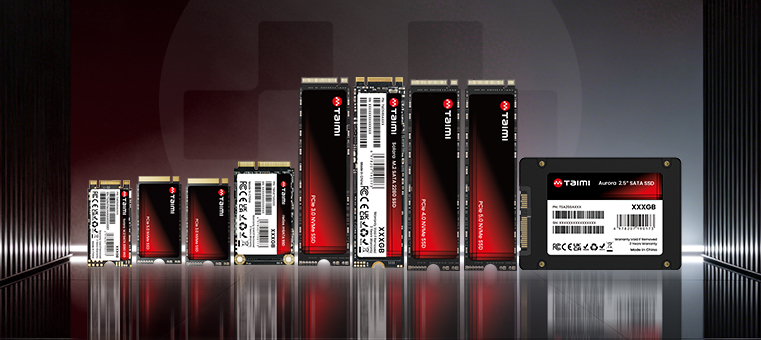
Taimi provides consumer-grade SSD products for computer builders, distributors, and OEM projects. Contact our team to discuss product specifications, sample evaluation, and bulk purchasing requirements.
Contact Taimi